

Run your shop from any screen
The desktop app puts your back office and your shop counter on one Windows or Linux PC. The phone app keeps orders, stock and customer messages in your pocket. Both are free with your Onescle shop and sign in with the account you already have.
Version 1.1.0 · 17.4 MB · Installer (.exe)
Version 1.1.0 · 19.4 MB · Archive (.tar.gz) with install script
- Free with every plan
- Sign in with your shop account
- Updates itself
Two apps, one account
Put the desktop app on the PC at your counter, and the phone app in your pocket. Use one or both.
Desktop app
Back office and shop counter for a Windows or Linux PC.
- Barcode counter with receipts and cash drawer
- Keeps selling when the internet drops
- The whole back office in one window
Windows
Version 1.1.0 · 17.4 MB · Installer (.exe)
Requirements and fingerprint
- Windows 10 or 11, 64-bit
- About 100 MB of free disk space
- An internet connection to sign in
SHA-256900edb7798574ba0501c473ed42f8d245b50f7a3fabdace8582b09834550dc07
Linux
Version 1.1.0 · 19.4 MB · Archive (.tar.gz) with install script
Requirements and fingerprint
- Ubuntu 22.04 or newer, Debian 12, or similar — 64-bit
- GTK 3 and a desktop session
- An internet connection to sign in
SHA-256df87034dfe0a241cad45b95e7bdb51d58bda369fd38817c6a261bbcb4b31f54e
Phone app
Orders, stock and customer messages, wherever you are.
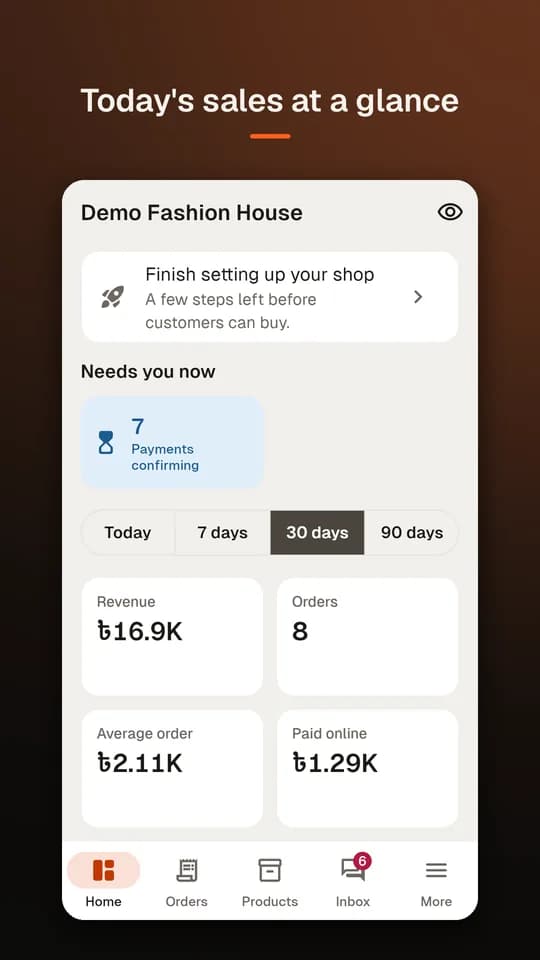
- New orders and today’s sales at a glance
- Book a courier from the order
- One inbox for Messenger
Android
Version 1.1.0 · 92.8 MB · Google Play, or the APK file
Requirements and fingerprint
- Android 7.0 or newer
- An internet connection
SHA-256f7e20a13ded77c56b28dfbec39d35b8f1fce15162d70d33bfa61eac5dbe9d8f9
iPhoneComing soon
Coming to the App Store. Until then, use Onescle in your phone’s browser.
Up and running in three steps
- 1
Download
Pick your device above. The version and size are shown beside each button.
- 2
Install
Run the installer, or unpack and run the script on Linux. The guide below walks through each one.
- 3
Sign in
Use the account you already have on the web. Your shop, products and orders are already there.
Your back office and your shop counter, in one app
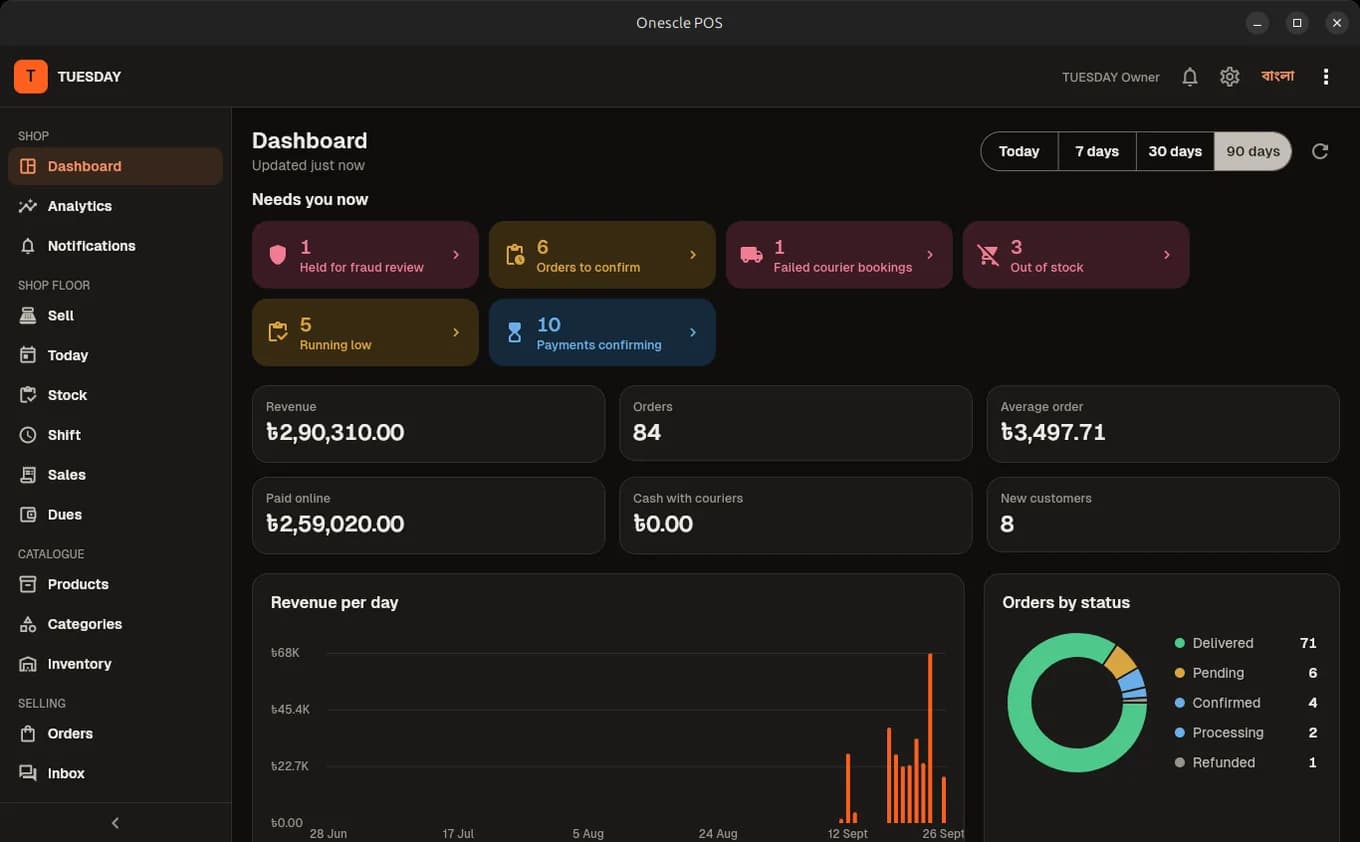
Everything the web dashboard does day to day, in a window that stays open all day — plus the things only an installed app can do at a counter.
A real shop counter
Scan barcodes with any USB or Bluetooth scanner, take cash, bKash, Nagad, card or due in one bill, and give change. Hold a bill, take an exchange, and close the shift with a counted drawer.
Receipts without a print dialog
Pick your receipt printer once and every sale prints straight to it — 58 mm, 80 mm or A4, with the shop’s logo, a barcode and a QR code. Bangla prints correctly.
Opens the cash drawer
A drawer plugged into the receipt printer opens after a cash sale, or from “Open drawer” with a reason that goes on the activity log.
Keeps selling when the internet drops
The counter starts from what the PC saved for up to seven days, keeps sales in order and sends them the moment the connection is back. A sale is never recorded twice.
The whole back office
Orders with courier booking, products and variants, categories, inventory, customers, discounts, the inbox, shipments, payments, reports, team and settings — the same rules as the web.
Updates itself, safely
When a new version is out, the app downloads it, checks its fingerprint against the one we publish, and installs it. A file that does not match is deleted, never run.
Your shop in your pocket
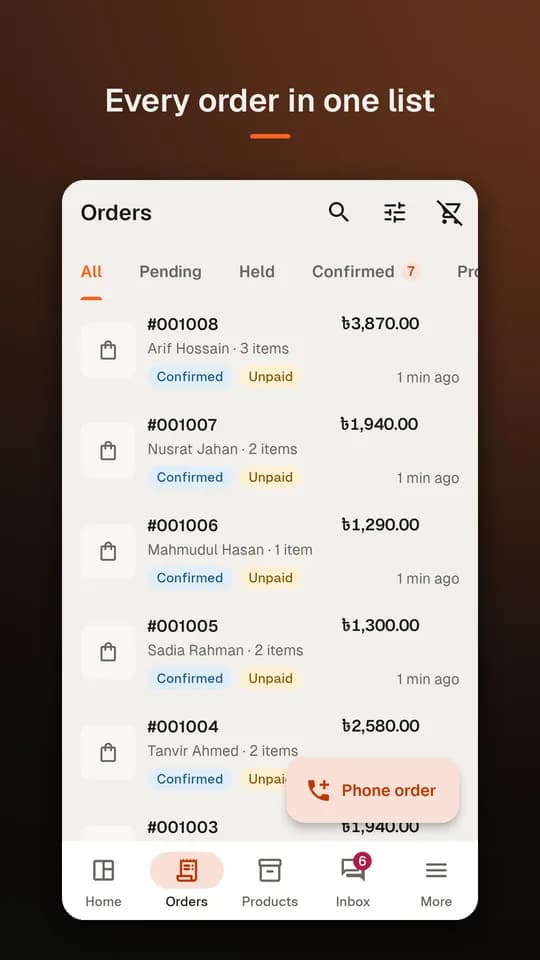
Check today’s orders, answer customers and fix a price from wherever you are.
- New orders on your home screen, with today’s sales, orders and new customers
- Confirm, pack, ship and cancel orders, one or many; book Steadfast, Pathao or Carrybee from the order
- A risk check and the customer’s past orders before you ship
- Add a product from a photo or a link, and let AI draft the text
- Scan a barcode to find a product or count stock
- One inbox for Messenger conversations and shop alerts
- Lock the app with your fingerprint or face
What you get
Install it in a few minutes
Pick your device. Each guide ends signed in and ready to sell.
- 1
Download the installer
Click “Download for Windows” above. The file is called Onescle-<version>-setup.exe.
- 2
Check the file (optional)
In PowerShell, compare the fingerprint with the SHA-256 shown on this page. They must be identical.
Get-FileHash .\Onescle-*-setup.exe -Algorithm SHA256 - 3
Run the installer
Double-click it and follow the steps. If Windows shows “Windows protected your PC”, click More info, then Run anyway — the installer is not code-signed yet, which is why the fingerprint above is published. Tick “Open Onescle when Windows starts” if this PC is your counter.
- 4
Sign in
Use the email or phone number and password of your Onescle account. If your account has two-step verification, enter the code from your authenticator app.
- 5
Set up the counter
Open ⚙ Settings in the top bar: choose your receipt printer, the paper size and, if you have one, the cash drawer. Scan anything into the scanner box to check the scanner.
Why we publish a fingerprint
Every file here has a SHA-256 fingerprint. If even one byte of the file changes — a broken download or a file someone tampered with — the fingerprint changes. The desktop app checks it automatically before it installs an update; you can check a download yourself with the commands in the guide.
Do the apps cost extra?
No. The desktop and phone apps are free with every Onescle plan. Features follow your plan exactly as they do on the web.
Do I need a separate account?
No. Sign in with the account you use on the web. A staff member signs in with their own account and sees only what their role allows.
Can a cashier use the desktop app without seeing the back office?
Yes. Mark the member “POS only” under Team. They sign in straight to the counter and cannot open anything else — the server enforces it, not just the app.
Which receipt printers work?
Any printer your PC can print to: 58 mm and 80 mm thermal printers with their driver installed, or an ordinary A4 printer. A cash drawer works when it is plugged into the receipt printer, or through a network printer’s address.
What happens when the internet goes down at the counter?
The counter keeps selling from the catalogue it saved, prints a provisional receipt, and sends the sales in order when the connection returns. Returns, exchanges and dues need the connection.
How do updates work?
The desktop app shows “Update” when a new version is published, downloads it, checks the fingerprint and installs it. The Android app updates from Google Play.
Is a Mac version available?
Not yet. On a Mac, use the web dashboard in your browser — it has every feature the desktop app shows.
No shop yet?
Create your Onescle shop on the web in five minutes, then sign in from any of the apps.